
JavaScript Kanban Workflow Columns
Workflow columns should help a person answer two questions quickly: where is this work now, and what needs to happen next?
That sounds simple, but boards often become hard to trust. Teams add a column for every exception, mix departments with statuses, or use vague labels such as “In progress” for work that actually needs several different decisions. Cards move, yet the people watching the board still cannot tell who owns the next step.
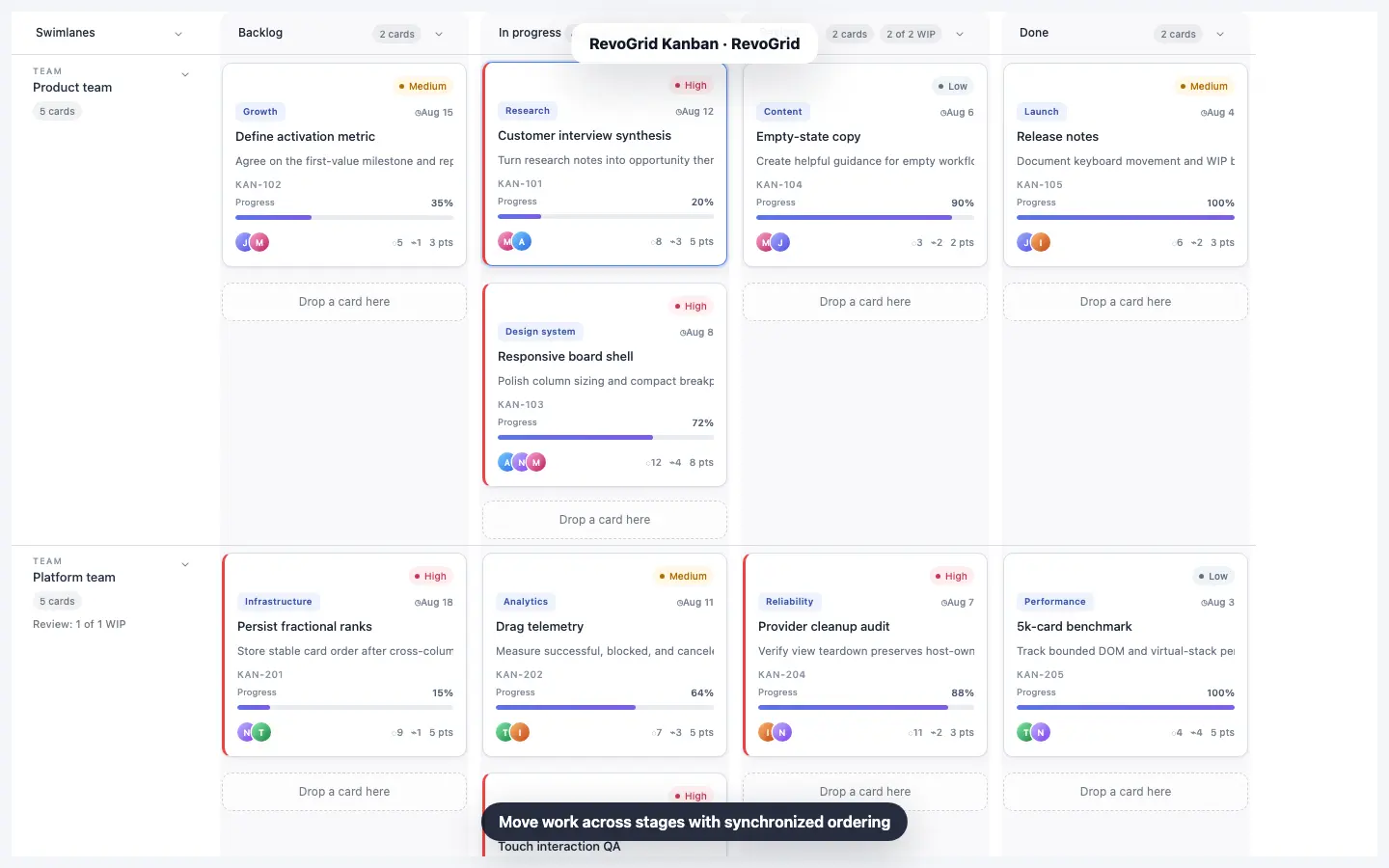
RevoGrid Kanban treats columns as a projection of ordinary application records. Your product keeps the canonical task, request, opportunity, or case data. The JavaScript Kanban component reads a status field to place each record in a stage and an order field to position it within that stage.
Start with decisions, not software states
A useful column represents a meaningful change in responsibility, risk, or customer expectation. It should describe a state that people can agree on without opening every card.
| Weak stage | Better stage | What becomes clear |
|---|---|---|
| In progress | Investigating | A specialist is finding the cause |
| Waiting | Customer reply | The next action belongs to the customer |
| Review | Legal approval | A named decision is required |
| Done | Live | The customer can use the delivered outcome |
The right stages depend on the work. Product delivery may use Discovery, Design, Build, Review, and Released. Support may use New, Triage, Investigating, Customer reply, and Resolved. An approval process may use Intake, Assigned, Approval, Fulfillment, and Complete.
Do not force every use case into the same five labels. A board is clearer when its language matches the real handoffs people already make.
Keep workflow state in canonical records
Avoid storing a separate array of cards inside every visual column. That creates another state tree to synchronize with tables, APIs, reports, filters, and permissions.
A source-backed record can stay flat:
type WorkItem = {
  id: string;
  title: string;
  status: 'intake' | 'assigned' | 'approval' | 'fulfillment' | 'complete';
  order: number;
  owner: string;
  dueDate: string;
};
status decides the workflow column. order decides the card position inside it. The same record can power a data grid, Kanban board, export, API request, or reporting view.
Use stable primitive identifiers and numeric order values. Spaced seed ranks such as 1000, 2000, and 3000 leave room to insert a moved card between two existing cards without rewriting the entire column.
Define ordered columns in KanbanConfig
The column array controls the visible workflow order, labels, widths, and optional capacity rules:
import type { KanbanConfig } from '@revolist/kanban';

const kanban: KanbanConfig<WorkItem> = {
  columns: [
    { prop: 'intake', name: 'Intake', size: 300 },
    { prop: 'assigned', name: 'Assigned', size: 300, wipLimit: 4 },
    { prop: 'approval', name: 'Approval', size: 320, wipLimit: 3 },
    { prop: 'fulfillment', name: 'Fulfillment', size: 320, wipLimit: 4 },
    { prop: 'complete', name: 'Complete', size: 300 },
  ],
  wipBehavior: 'warn',
  cardRowHeight: 220,
};
The prop values should match the values stored in the configured status field. Keep those values stable for APIs and persistence even when the visible name changes for localization or product language.
Choose a column width that fits the complete card rather than only its title. A support card may need room for an SLA state; a sales card may need a prominent value and next decision; a compact editorial card may prioritize its headline and publish date.
Use WIP limits to start a conversation
A work-in-progress limit is most helpful when it exposes a real capacity constraint. It should not become a decorative badge repeated on every stage.
Use wipLimit where accumulated work changes team behavior:
- active investigations that require specialist attention;
- approvals that depend on a limited group of decision makers;
- review stages where too much queued work slows delivery;
- fulfillment steps with a known operational capacity.
With wipBehavior: 'warn', users can complete a move while the board makes the overload visible. With wipBehavior: 'block', a move that would exceed the destination limit is rejected. Choose the behavior based on the business rule: warnings support judgment, while blocking is appropriate when crossing the limit would be invalid rather than merely undesirable.
Count WIP against canonical workflow data, not only cards currently visible after filtering. Hidden work still consumes capacity.
Separate workflow columns from swimlanes
Columns and swimlanes answer different questions:
- columns answer what state is the work in?
- swimlanes answer which team, product, customer, or operating line does it belong to?
Not every board needs swimlanes. A straightforward sales or editorial flow may be easier to scan without them. Add lanes when people genuinely compare the same workflow across groups, and keep the lane label compact enough that it does not compete with the cards.
If a process has different statuses for different teams, it may be two boards rather than one board with many empty cells.
Make headers useful at a glance
A workflow header can include a stage icon, title, card count, WIP state, and collapse control. Those elements should remain secondary to the stage name.
Good headers:
- keep icon and title aligned on one clear baseline;
- show capacity only where a limit exists;
- preserve an obvious expand control when collapsed;
- use color to identify stages or risk without depending on color alone;
- remain readable during horizontal scrolling and at narrower widths.
Custom header templates can give different boards distinct visual language, but they should preserve the component's focus, collapse, and movement semantics. A polished header is still a control, not only decoration.
Persist the committed move, not the visual gesture
When a user moves a card, persist the committed changed-record batch emitted by the Kanban workflow. A move may change the card's status and order, and rank rebalancing can update nearby cards in the destination bucket.
The backend should still validate permissions, allowed transitions, current record versions, and business policy. If another user changed the same work, return authoritative records and reconcile the board instead of assuming the browser owns final state.
This keeps the UI responsive without turning a drag gesture into the source of truth.
A practical workflow-column checklist
Before shipping a board, check that:
- every stage has a clear entry and exit condition;
- adjacent stages represent a meaningful handoff or decision;
- column values are stable in persisted records;
- WIP limits appear only where capacity matters;
- cards expose the information needed to make the next move;
- collapsed columns can always be expanded again;
- horizontal scrolling works with mouse, touchpad, touch, and keyboard;
- drag-and-drop and programmatic moves follow the same rules;
- the server validates and persists the complete changed-card batch;
- the board still makes sense when filters or swimlanes are active.
Try the workflow with real data
Open the interactive RevoGrid Kanban demo to move cards across workflow columns and inspect WIP behavior. For production-scale architecture, read the 50,000-task virtualized Kanban guide. You can also compare the Sales and Customer Onboarding and Internal Workflows examples to see how the same column model supports very different work.
RevoGrid Kanban is included in Pro Advanced. Get Pro Trial to evaluate workflow columns, custom cards, swimlanes, movement rules, and persistence with your own records.