Yes; Next.js documents Server Actions for mutations. Keep the same application contract: validate on the server, check access, apply a conditional write, and return the canonical record or a structured rejection. A Route Handler is used here to make the request and response visible and easy to inspect.
Build an Editable Next.js Data Table with Row Saving
An order table becomes useful when somebody can change a quantity, correct a price, and trust that the saved values will still be there after a reload. Getting cells on screen is the first step. The rest is deciding where an edit lives, when it reaches the server, and what happens when the server cannot accept it.
This guide builds a small order-line editor with RevoGrid and the Next.js App Router. It keeps the page shell on the server, loads the interactive grid through a client boundary, and saves one selected row at a time. A draft stays available after a failed save. A version check catches another writer’s change before it is overwritten.
The example uses 20 synthetic order lines. It deliberately concentrates on editing and persistence; remote pagination and filtering can be added as a separate data-loading layer.
Try editing and saving an order line
Select OL-0001, change Quantity from 12 to 15, and press Enter to finish the cell edit. The row now shows Unsaved changes. Click Save row. After the server accepts the update, the notice reads Saved OL-0001. Version 2. Reload the starter and the quantity remains 15.
Try a second edit and choose Cancel changes. The selected row returns to its last confirmed values. Cancel affects that row only; drafts on other rows remain available.
Download the complete Next.js starter. This documentation site is static; the recording and screenshots below come from the starter running locally in production mode with a real SQLite database. Run it on your machine to edit the example.
Run the complete starter
Extract the ZIP, open its nextjs-editable-data-table folder, and use Node 24.13 or later with pnpm:
sh
pnpm install --frozen-lockfile
pnpm seed
NEXT_TELEMETRY_DISABLED=1 pnpm build
DEMO_ACTIONS=1 NEXT_TELEMETRY_DISABLED=1 pnpm start
Open http://127.0.0.1:49302. pnpm dev runs development mode; pnpm test runs the focused model/database checks. The verified stack is Next.js 16.4.6, React/React DOM 19.2.7, RevoGrid Core/React wrapper 4.31.4, Revo UI 4.0.6, and TypeScript 5.9.3, tested on Node 24.22.1. The source and lockfile are included.
pnpm seed resets only this example's synthetic database. Normal restarts preserve existing rows in .data/orders.sqlite. DEMO_ACTIONS=1 enables the reset and external-writer controls on loopback; omit it when those controls are unwanted. This tutorial has a fixed server-owned demo workspace and no login. A public deployment needs its own authenticated scope and durable database hosting.
Separate the grid from application responsibilities
| Requirement | Owner in this example |
|---|---|
| Render rows, edit cells, and expose edit events | RevoGrid Core through its React wrapper |
| Render the page and handle server requests | Next.js |
| Keep drafts, validate values, and show Save/Cancel state | Application code |
| Check access, store records, and detect conflicting saves | Application endpoint and database |
| Pro plugins | Not required for this workflow |
The RevoGrid React guide documents the wrapper’s source and columns props. The edit lifecycle exposes points for controlling and observing changes. Saving a row to your database remains an application operation.
Define the record that the server confirms
Each row has an immutable ID and a server-controlled version:
ts
export type OrderStatus = "draft" | "confirmed" | "shipped";

export type OrderLine = {
  id: string;
  sku: string;
  quantity: number;
  unitPriceCents: number;
  status: OrderStatus;
  version: number;
};

export type EditableOrderFields = Pick<
  OrderLine,
  "sku" | "quantity" | "unitPriceCents" | "status"
>;
Prices use integer US-dollar cents: 125 means USD 1.25. The example labels the editable column Unit price (USD cents) so entering 125 has an unambiguous meaning. A currency editor can convert a displayed decimal amount into cents later, but that is a separate input-formatting decision.
| Order line | SKU | Quantity | Unit price, USD cents | Status | Version |
|---|---|---|---|---|---|
| OL-0001 | WASHER-M6 | 12 | 125 | draft | 1 |
| OL-0002 | BOLT-M8 | 40 | 89 | confirmed | 2 |
| OL-0003 | BRACKET-90 | 6 | 1495 | draft | 4 |
An ID identifies the business record. A row’s current position identifies where it happens to appear. Store drafts and route save responses by ID, even if you later enable sorting or filtering.
Keep version read-only in the interface and exclude it from editable fields. A browser may send the version it expects, but the server decides the version of a successful update.
Put the interactive grid behind a narrow client boundary
App Router pages and layouts are Server Components by default. An interactive table needs a Client Component for event handlers and local state. This composition lets the page heading and explanatory content remain server-renderable while the grid handles interaction in the browser. See the Next.js component model.
Pass the initial records as plain serializable data. Define event handlers and column callbacks on the client side; do not pass ordinary callback functions from the server page. The use client reference explains this boundary.
There is a subtle distinction here: use client does not disable prerendering. Next.js can still produce an initial HTML preview of Client Components. Browser-dependent module initialization may therefore need an explicit client-only import.
This client entry keeps the RevoGrid implementation in a separately imported module:
tsx
"use client";

import dynamic from "next/dynamic";
import type { OrderLine } from "../shared/order-model.ts";

const OrdersGrid = dynamic(() => import("./OrdersGrid"), {
  ssr: false,
  loading: () => (
    <div role="status" style={{ minHeight: 420 }}>
      Loading order editor…
    </div>
  ),
});

export default function OrdersClient({
  initialRows,
}: {
  initialRows: OrderLine[];
}) {
  return <OrdersGrid initialRows={initialRows} demoActions={false} />;
}
The ssr: false declaration belongs in this Client Component. Putting that option directly in a Server Component is unsupported. Next.js documents the distinction in its lazy-loading guide.
The grid implementation owns the browser-dependent imports. Keep those imports out of the server page and shared model module. The loading placeholder reserves space, and an error boundary offers Retry loading if the component cannot initialize.
RevoGrid’s React documentation recommends client-side loading for server-rendered React environments. The separate RevoGrid hydrate bundle is another integration path; this tutorial uses the interactive React wrapper and does not configure server hydration of the grid itself.
The page supplies data, the browser holds drafts, and the server confirms a versioned write.
Keep editable rows separate from confirmed records
Install the wrapper in your Next.js application:
sh
pnpm add @revolist/[email protected] @revolist/[email protected]The actual binding lives in app/OrdersGrid.tsx in the source download. Columns are created once, and the grid edits a stable draft source. The central binding uses the wrapper's typed events:
tsx
<RevoGrid
  ref={grid}
  source={source}
  columns={columns}
  range={false}
  onBeforeedit={beforeEdit}
  onBeforecellfocus={event => setSelected(String(event.detail.model.id))}
  onBeforerangeedit={event => {
    event.preventDefault()
    setNotice(text.bulk)
  }}
  onAfteredit={event => {
    if (!("model" in event.detail)) return
    setEditing(false)
    const id = String(event.detail.model.id)
    setServerErrors(current => ({ ...current, [id]: {} }))
    refresh(n => n + 1)
  }}
/>
This excerpt shows the grid boundary; the full component also guards beforeeditstart, prevents edits on a pending row, and subscribes to the public canceledit lifecycle event with cleanup. The Save and Cancel controls are Revo UI buttons in its React toolbar. Revo UI also supplies the row dropdown, fields, panels, alerts, disclosure, and confirmation dialog; Core retains the grid and its editing lifecycle.
For explicit reconciliation, the component updates each cell through grid.setDataAt({ row, col, rowType: 'rgRow', colType: 'rgCol', val }). Its fixed, unsorted twenty-row source makes the ID-to-row lookup unambiguous. Do not reuse that positional assumption after adding filtering or sorting without adapting the mapping.
Maintain two independent copies of each loaded record. The confirmed record is the last version acknowledged by the server. The draft is what the user is editing. Never let both copies reference the same mutable object; otherwise a cell edit can also alter the supposed saved baseline.
For this small editor, the grid works with mutable draft rows. Application state tracks each row’s validation errors and save status. A valid normalized draft is dirty when its editable fields differ from the confirmed record. An invalid draft is also unsaved. Returning to the confirmed values clears the dirty state.
RevoGrid’s data synchronization guide describes stable draft objects and incremental synchronization. Replacing the entire source after every cell edit can disturb interaction state. Use the public update path for an explicit cancel or server reconciliation instead of turning each keystroke into a dataset reload.
Before Save or Cancel, finish the current cell editor. This example asks the user to press Enter to accept that cell value or Escape to discard it. The toolbar shows Finish the cell edit with Enter or Escape. while an editor remains open. It does not silently save an earlier cell value while newer text is still being typed.
Validate a complete row before sending it
The draft uses text values while the user edits. The normalized save payload uses numbers. Keep that conversion explicit so an empty quantity does not become zero by accident.
This helper accepts a decimal integer written with digits and checks the example’s bounds:
ts
export function parseBoundedInteger(
  raw: string,
  minimum: number,
  maximum: number,
): number | null {
  const text = raw.trim();
  if (!/^\d+$/.test(text)) return null;

  const value = Number(text);
  return Number.isSafeInteger(value) &&
    value >= minimum &&
    value <= maximum
    ? value
    : null;
}
The example accepts quantities from 1 to 9,999 and prices from 0 to 99,999,999 cents. These are application rules, not RevoGrid limits. A zero price is valid; a zero quantity is not. Decimal quantities, negative values, and exponential notation are rejected with a field-specific message.
SKU values are trimmed and converted to uppercase. A valid SKU contains 1–32 letters, numbers, dots, underscores, or hyphens and starts with a letter or number. Status must be draft, confirmed, or shipped.
For example, changing OL-0001’s quantity to 0 shows Quantity must be a whole number from 1 to 9,999. The draft stays visible, and Save remains disabled until the error is corrected. Announce errors in text beside the editor’s toolbar and identify the affected field; color alone is insufficient feedback.
Cancel restores the selected row’s confirmed values, removes its field errors, and shows Changes discarded for OL-0001. It makes no server request.
Save through a Next.js endpoint
Use an App Router Route Handler for the mutation. Next.js supports handlers such as PATCH in a route.ts file, using standard Request and Response APIs. See the Route Handlers guide.
A save for OL-0001 sends the editable fields and its expected version:
json
{
  "expectedVersion": 1,
  "changes": {
    "sku": "WASHER-M6",
    "quantity": 15,
    "unitPriceCents": 125,
    "status": "draft"
  }
}
Capture this payload before starting the request. Disable duplicate saves and freeze editing on the submitted row until the request settles. Users can select another row, but the pending response still belongs to OL-0001. The example allows one save request at a time to keep that behavior easy to follow.
The endpoint parses the body, accepts only the allowed fields, repeats validation, and resolves the target record through the application’s access boundary. Read-only columns are useful interface constraints; they do not replace server checks.
The local starter uses a disposable demo database. In an authenticated application, obtain the workspace or account scope from trusted server context. Do not accept a client-supplied workspace identifier as proof of permission. The demo does not include an authentication-provider setup.
Make the version check part of the write
Checking a version and then performing an unconditional update leaves a gap for another save. Include the expected version in the update condition. For a SQLite adapter, the application query has this shape:
sql
UPDATE order_lines
SET sku = :sku,
    quantity = :quantity,
    unitPriceCents = :unitPriceCents,
    status = :status,
    version = version + 1
WHERE workspace = :trustedWorkspaceId
  AND id = :id
  AND version = :expectedVersion
RETURNING id, sku, quantity,
          unitPriceCents,
          status, version;
Use bound parameters. SQLite documents the update condition and returned values in its UPDATE and RETURNING references. The version policy is application logic built on that database operation.
One returned row means the write matched. Respond with that canonical row and its new version. No returned row requires a scoped existence check: a current accessible record means a conflict; an absent or inaccessible record produces the application’s not-found response. Do not retry with the new version automatically.
After success, replace the confirmed snapshot for that ID and reconcile its displayed draft with the response. The server response is authoritative, including normalized SKU text and the incremented version.
Preserve work when the save is rejected
Different failures need different next actions:
| Result | What the editor does |
|---|---|
| Invalid fields | Shows returned field errors and keeps the draft editable |
| Version conflict | Keeps the draft and offers a comparison with the current server row |
| Row unavailable | Keeps a readable copy of the draft and disables saving that row |
| Network failure | Keeps the draft; Save row retries the original expected version |
To reproduce a conflict, load OL-0003 at version 4 in two sessions. Session A changes Quantity from 6 to 9 and Status to confirmed, then saves, creating version 5. Session B tries to save Quantity 8 with expected version 4. Its update is rejected; Quantity 9 remains on the server.
Session B sees OL-0003 changed on the server. Your draft is preserved. The comparison shows the original value, the local draft, and the latest server value, with the compared versions.
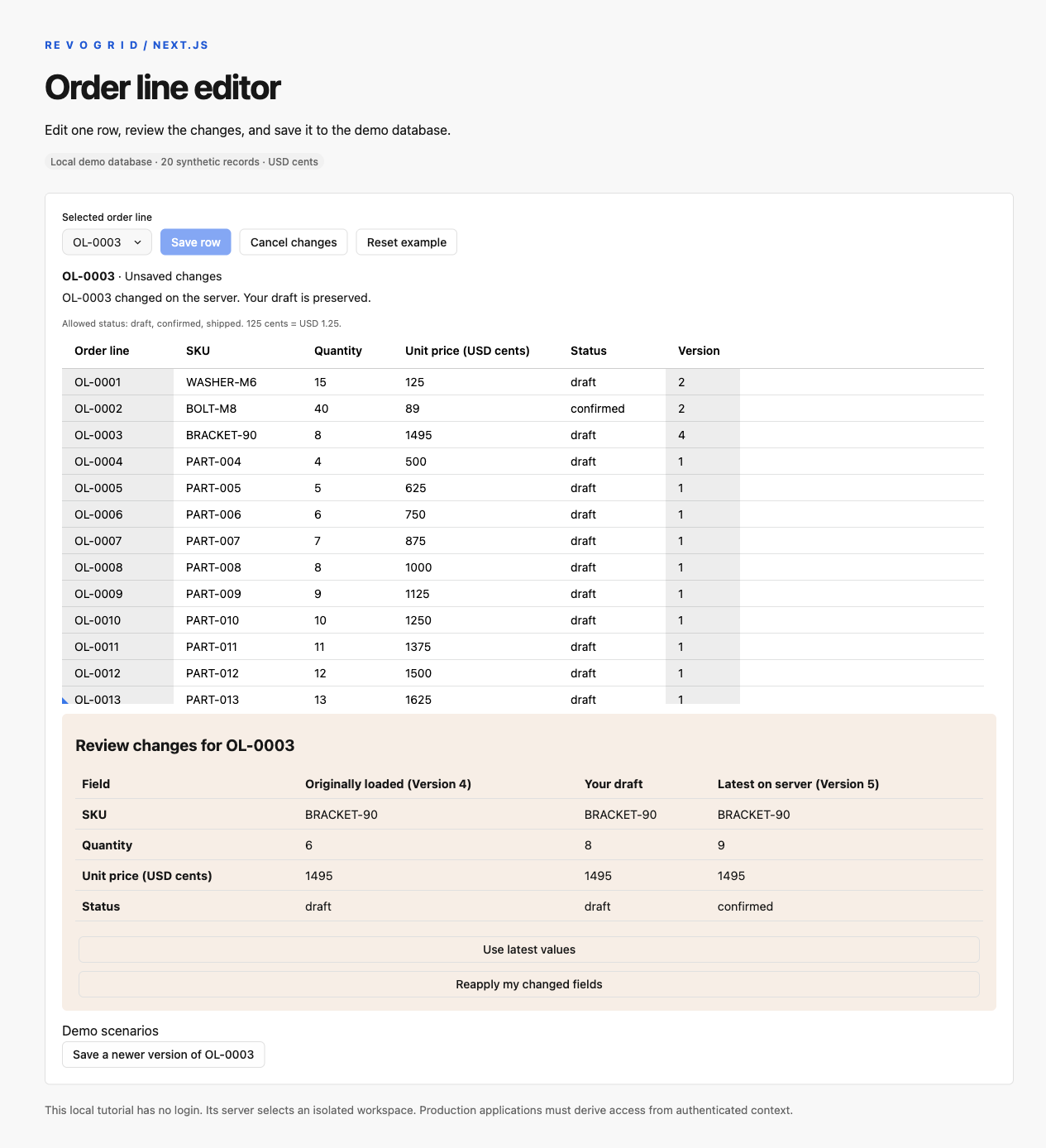
A stale save leaves the database unchanged and keeps the draft available for review.
Use latest values discards that row’s local draft and adopts version 5. Reapply my changed fields starts with version 5 and overlays only fields changed locally relative to the original version 4 record. It leaves untouched remote fields intact and produces a new unsaved draft. It does not submit automatically.
A connection can fail after the database commits but before the browser receives the response. In that case a retry with the old version may return a conflict. Treat that as reconciliation, not evidence that the first write never happened. The draft remains available throughout.
Check the saved result after a hard reload
Saving into a module-level array demonstrates a response but does not establish durable storage. The starter reads the persistent adapter directly in app/page.tsx, with export const dynamic = 'force-dynamic'. Its list endpoint also sends Cache-Control: no-store. A cached initial snapshot can make a successful write appear to disappear.
Node's SQLite driver returns records with null prototypes. server/store.ts converts them to plain objects before they cross the Server Component boundary. Passing the raw driver records to a Client Component is rejected by Next.js.
The local server queue includes request-body parsing and reset operations, so a reset requested after an outstanding mutation runs after that mutation. Client dataset generations separately prevent late callbacks from replacing the restored view.
Also test direct navigation to the production build. Client-side navigation from another page can miss initialization problems that occur during a hard load. Check for browser-global errors, hydration warnings, an empty loading container, and a saved value reverting unexpectedly.
FAQ
Frequently asked questions
Add a reliable editing workflow to your Next.js app
Run the starter, save a row, reload it, and reproduce the two-session conflict. Those four actions demonstrate the integration contract you can adapt to your own data model.
For the grid setup, start with the React integration guide. When your dataset outgrows a single loaded page, continue with the SQL-backed pagination tutorial, keeping the row-saving rules established here.
Source map and verification
The download includes app/OrdersClient.tsx (client-only import and component error boundary), app/OrdersGrid.tsx (draft and request lifecycle), shared/order-model.ts (normalization, validation and field-level reapply), server/store.ts (SQLite and the mutation queue), Route Handlers under app/api/, tests and a setup README. Import @revolist/ui/styles.css once in the root layout. Use the named React components from @revolist/ui/react; the starter keeps only application layout in its CSS. UI copy accepts host overrides instead of being tied to one application's wording.
The production starter was checked in a Chromium browser for invalid input, cell-editor completion, row-local Cancel, real save/hard reload, conflict/adoption/reapply, a save completing while another row is edited, reset during a pending mutation, and a response lost after commit. The layout was checked at desktop and 390px widths. Focused server/model tests cover the conditional write and restart persistence. These are local results; no production backend or public deployment is implied.
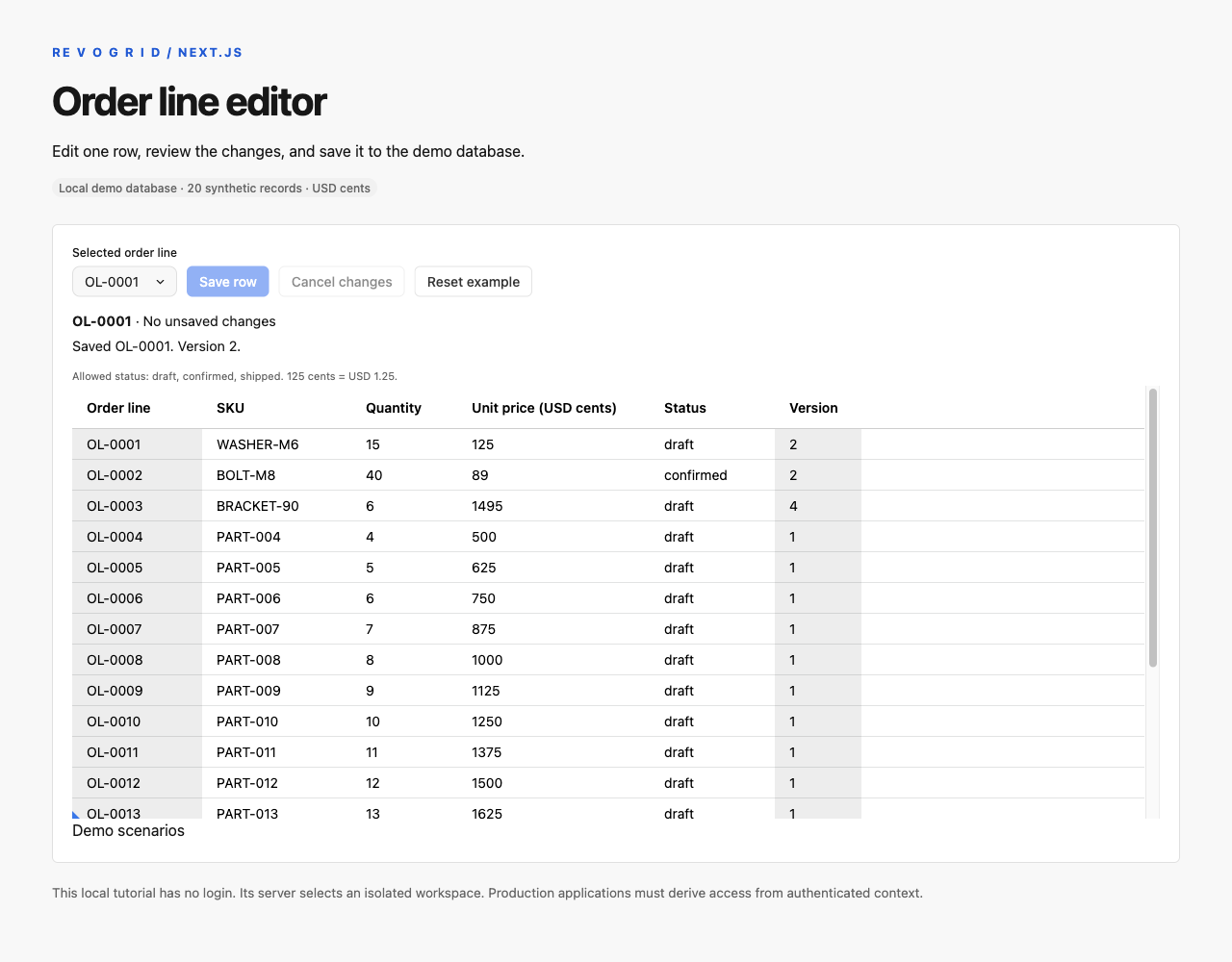
The fixture is synthetic. Its documented walkthrough rows were reconstructed from the retained manuscript after the original research JSON became unavailable; no byte-for-byte restoration of the old fixture is claimed.
The shared control styles import @revolist/ui/styles.css and @revolist/ui/dropdown/editor-dropdown.style.scss. Sass is included in the starter so the exported dropdown styling is compiled alongside the application.