
Data Grid
JavaScript data grids compared
Compare the best JavaScript data grid libraries in 2026: AG Grid, RevoGrid, Handsontable, MUI X Data Grid, Tabulator, SlickGrid, and Glide Data Grid.
Enterprise dashboards are often described as a combination of charts, KPI cards, and tables. But what is good enough for real business software?
A strong enterprise dashboard is not just a reporting screen. It is a decision surface: a place where users monitor what is happening, understand why it is happening, drill into the details, and take action without leaving the workflow.
That is where a high-performance data grid, pivot, gantt, scheduler and event manager become central. Charts help users see patterns. KPI cards help users understand status. But in many enterprise products, the real work still happens in rows, columns, filters, edits, validations, exports, exceptions, approvals, and operational records.
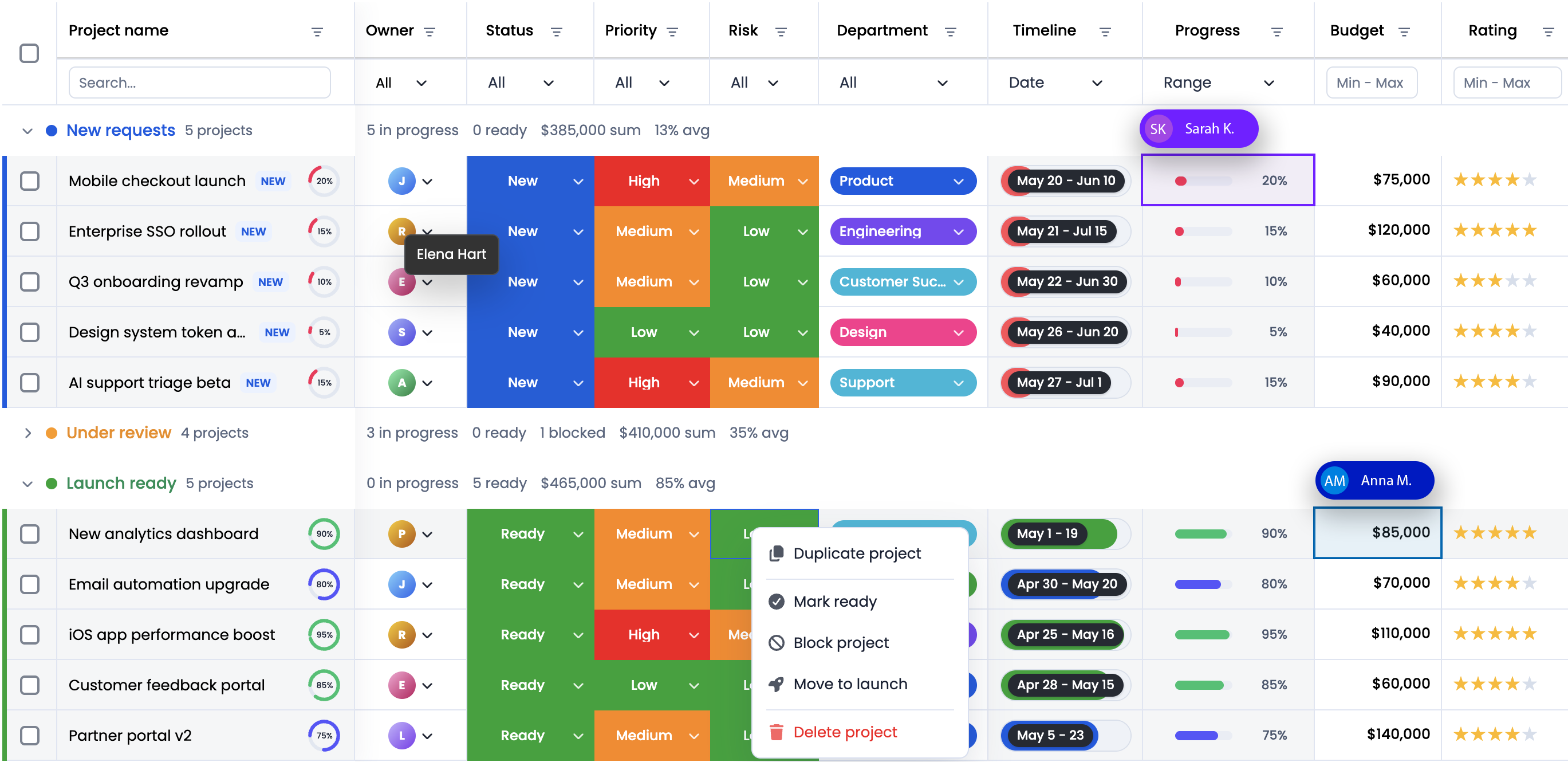
A common enterprise dashboard starts like this:
“Let’s put some KPI cards at the top, a chart in the middle, and a table underneath.”
That layout is familiar, but it usually hides the hard questions:
The best dashboard design starts by choosing the dashboard type.
| Dashboard type | Main question | Typical user | RevoGrid role |
|---|---|---|---|
| Operational dashboard | What needs attention now? | Operations, support, logistics, dispatch, finance ops | Main workspace for queues, exceptions, editing, and action |
| Analytical dashboard | Why did this happen? | Analysts, product teams, finance, revenue ops | Drill-down grid, pivot table, filters, grouped data, exports |
| Strategic dashboard | Are we on track? | Executives, directors, department leads | Summary table, KPI explanation layer, detail drill-through |
| Planning dashboard | What should happen next? | Project managers, resource planners, operations planners | Editable planning grid, Gantt, Scheduler, scenario workspace |
DataGrid should not be treated as “the table below the charts.” In many enterprise products we make, RevoGrid is the core interaction layer, with charts and KPI cards acting as summary and navigation layers around it.
A consumer analytics dashboard can often be beautiful, lightweight, and mostly read-only. Enterprise dashboards are different.
They usually have to support:
A dashboard like that is no longer just a BI page. It becomes part of the application.
A practical dashboard usually has three layers.
The summary layer answers: Where should I look?
It includes KPI cards, trend charts, counters, alerts, and high-level status.
Examples:
12814$2.4M37 SKUs19-8.2%This layer should stay simple. Avoid turning KPI cards into mini dashboards. Their job is to route attention.
The investigation layer answers: What exactly is happening?
This is where RevoGrid becomes the main component.
Users need to filter, sort, group, inspect, compare, pin important columns, expand details, and move quickly through records.
Examples:
The action layer answers: What can I do now?
This is where dashboards become workflows.
Examples:
RevoGrid’s editing, events, custom editors, validation, context menus, and Pro workflow plugins are useful here because they let developers keep the workflow inside the dashboard instead of forcing users to jump between disconnected screens.
A strong enterprise dashboard does not need every feature at once. But it should deliberately choose from the following feature groups.
Enterprise dashboards often start small and then grow quickly.
The first version may show 5,000 rows. Six months later, customers ask for full-year history, cross-region views, audit data, or multi-tenant reporting. Suddenly the same dashboard needs to handle hundreds of thousands or millions of records.
Virtual rendering keeps the browser focused on the visible viewport instead of rendering the whole dataset as DOM nodes.
Use it for:
But virtualization is not a replacement for backend architecture. If the dataset is too large or sensitive to load into the browser, combine RevoGrid with server-side paging, range loading, remote filtering, or remote grouping.
Recommended Pro follow-up:
Enterprise grids often have many columns. Without pinning, users lose context.
Common pinned columns:
Common pinned rows:
Example layout:
const columns = [
  { prop: 'account', name: 'Account', pin: 'colPinStart', size: 220 },
  { prop: 'region', name: 'Region', pin: 'colPinStart', size: 120 },
  { prop: 'mrr', name: 'MRR', sortable: true },
  { prop: 'churnRisk', name: 'Churn Risk', sortable: true },
  { prop: 'owner', name: 'Owner' },
];

grid.pinnedBottomSource = [
  {
    account: 'Total',
    region: '',
    mrr: 1245000,
    churnRisk: '',
    owner: '',
  },
];
Pinned regions are especially important in dashboards where users compare metrics across time, regions, or business units.
Filtering is the difference between a data dump and a dashboard.
Basic filters are enough for simple screens. Enterprise dashboards usually need richer conditions:
Late, Blocked, or At Risk.$50,000.Recommended patterns:
Recommended Pro follow-up:
Grouping turns raw rows into a management view.
Examples:
| Use case | Group by |
|---|---|
| Finance operations | Country → entity → invoice status |
| Support dashboard | Product → priority → SLA status |
| Logistics dashboard | Region → carrier → route |
| ERP dashboard | Plant → work center → production order |
| HR dashboard | Department → location → role |
| SaaS admin dashboard | Plan → lifecycle stage → health score |
Grouping is especially useful when the user needs to answer: “Where is the problem concentrated?”
For analytical dashboards, grouping often evolves into Pivot Table. When users start asking for dimensions, measures, totals, subtotals, and saved configurations, use Pivot analytics instead of building a fragile custom pivot experience.
Enterprise dashboards need consistent formatting.
A currency column should behave the same way everywhere. A percentage column should sort numerically, not alphabetically. A status column should use the same labels, colors, filters, and editors across dashboards.
RevoGrid column types let you package column behavior once and reuse it.
Good candidates for column types:
Example:
const moneyColumnType = {
  size: 140,
  cellTemplate(h, { model, prop }) {
    const value = Number(model[prop] ?? 0);
    return h('span', { class: 'money-cell' },
      new Intl.NumberFormat('en-US', {
        style: 'currency',
        currency: 'USD',
        maximumFractionDigits: 0,
      }).format(value)
    );
  },
};

grid.columnTypes = {
  money: moneyColumnType,
};

grid.columns = [
  { prop: 'revenue', name: 'Revenue', columnType: 'money' },
  { prop: 'forecast', name: 'Forecast', columnType: 'money' },
  { prop: 'pipeline', name: 'Pipeline', columnType: 'money' },
];
This keeps enterprise dashboards consistent and reduces duplicate code.
Many dashboards are read-only. Enterprise dashboards often are not.
Users may need to:
Inline editing is powerful, but it must be controlled.
Recommended rules:
Example:
grid.addEventListener('beforeedit', (event) => {
  const { prop, val, model } = event.detail;

  if (model.locked) {
    event.preventDefault();
    return;
  }

  if (prop === 'forecast' && Number(val) < 0) {
    event.preventDefault();
    return;
  }

  if (prop === 'owner') {
    event.detail.val = String(val).trim();
  }
});

grid.addEventListener('afteredit', async (event) => {
  const row = event.detail.model;

  await fetch(`/api/forecast/${row.id}`, {
    method: 'PATCH',
    headers: { 'content-type': 'application/json' },
    body: JSON.stringify(row),
  });
});
Recommended Pro follow-up:
A dashboard should tell users where to look.
Conditional formatting helps users scan dense data quickly:
Example:
const columns = [
  {
    prop: 'slaMinutes',
    name: 'SLA',
    cellProperties: ({ model }) => ({
      class: {
        'sla-danger': model.slaMinutes > 60,
        'sla-warning': model.slaMinutes > 30 && model.slaMinutes <= 60,
        'sla-ok': model.slaMinutes <= 30,
      },
    }),
  },
];
Use formatting to communicate meaning, not decoration. Every visual style should represent a business rule.
Recommended Pro follow-up:
Enterprise objects are rarely flat.
A customer has subscriptions, invoices, tickets, contacts, and usage history. A shipment has stops, packages, customs documents, and exceptions. A production order has materials, operations, machines, and quality checks.
Forcing all of that into one flat table creates unreadable dashboards.
Better patterns:
Examples:
| Parent row | Detail content |
|---|---|
| Customer | Subscriptions, invoices, tickets, usage |
| Invoice | Line items, tax details, approvals, audit log |
| Shipment | Stops, packages, carrier events, exceptions |
| Employee | Contracts, skills, shifts, performance notes |
| Project | Tasks, risks, resources, budget history |
Recommended Pro follow-up:
Enterprise users expect right-click and contextual actions in dense grids.
Examples:
Context menus should be permission-aware. Users should not see actions they cannot perform, or those actions should be disabled with a clear explanation.
Recommended Pro follow-up:
Enterprise users still expect Excel.
Even when your dashboard is better than a spreadsheet, people need to export data for reporting, finance, audit, offline review, or sharing with stakeholders.
Support at least:
Important: never let export bypass authorization. If a user cannot view a column or row in the product, they should not be able to export it either.
Recommended Pro follow-up:
Audience: CEO, CFO, VP Sales, revenue operations.
Main question: Are we on track, and where is revenue at risk?
Suggested layout:
Recommended sections:
Recommended RevoGrid features:
| Need | Feature |
|---|---|
| Keep account identity visible | Pinned account column |
| Compare many metrics | Horizontal virtualization |
| Find risky accounts | Filters and conditional formatting |
| Explain KPI movement | Row expansion / master-detail |
| Create board-ready reports | Excel export |
| Analyze by segment | Pivot Table in Pro Advanced |
Example columns:
const columns = [
  { prop: 'account', name: 'Account', pin: 'colPinStart', size: 220 },
  { prop: 'segment', name: 'Segment', filter: 'string' },
  { prop: 'owner', name: 'Owner', filter: 'string' },
  { prop: 'mrr', name: 'MRR', columnType: 'money', sortable: true },
  { prop: 'renewalDate', name: 'Renewal', columnType: 'date', sortable: true },
  { prop: 'healthScore', name: 'Health', sortable: true },
  { prop: 'riskReason', name: 'Risk Reason', size: 260 },
];
Pro CTA:
If your revenue dashboard needs account drill-down, pivot analytics, Excel export, validation, or saved advanced filters, review RevoGrid Pro and the Pro feature comparison.
Audience: operations managers, dispatchers, support teams, logistics coordinators.
Main question: What needs action now?
Suggested layout:
Recommended RevoGrid features:
Example workflow:
Implementation idea:
async function showBreachedSla() {
  grid.filter = {
    collection: {
      slaStatus: {
        type: 'eq',
        value: 'Breached',
      },
    },
  };

  await grid.scrollToRow(0);
}
For read-mostly live updates, use a server push model and targeted updates rather than resetting the whole grid source.
const events = new EventSource('/api/operations/live');

events.addEventListener('message', async (message) => {
  const update = JSON.parse(message.data);

  await grid.setDataAt({
    row: update.rowIndex,
    prop: update.prop,
    val: update.value,
  });
});Audience: finance operations, accounting, controllers, auditors.
Main question: Which records do not reconcile, and what changed?
Finance dashboards are grid-heavy because users need precision. They often care less about beautiful charts and more about trust, totals, locked periods, exports, and auditability.
Recommended layout:
Recommended features:
| Requirement | RevoGrid capability |
|---|---|
| Compare many financial columns | Column virtualization, pinned columns |
| Keep totals visible | Pinned bottom rows |
| Prevent invalid edits | Validation and readonly rules |
| Audit changes | History / audit workflow |
| Export for auditors | Excel export |
| Analyze by entity and period | Grouping, aggregation, Pivot Table |
Example columns:
const columns = [
  { prop: 'entity', name: 'Entity', pin: 'colPinStart' },
  { prop: 'period', name: 'Period', pin: 'colPinStart' },
  { prop: 'invoiceId', name: 'Invoice ID' },
  { prop: 'invoiceAmount', name: 'Invoice Amount', columnType: 'money' },
  { prop: 'paymentAmount', name: 'Payment Amount', columnType: 'money' },
  { prop: 'variance', name: 'Variance', columnType: 'money' },
  { prop: 'status', name: 'Status' },
  { prop: 'reviewer', name: 'Reviewer' },
];
Important design rule: finance users need explainability. If a variance is red, the dashboard should make it easy to see why.
Audience: production planners, plant managers, operations leads.
Main question: Which orders, materials, or resources will block production?
Recommended layout:
Recommended RevoGrid features:
Example row model:
const source = [
  {
    orderId: 'PO-10291',
    plant: 'Warsaw',
    line: 'Line 4',
    product: 'SKU-7781',
    plannedStart: '2026-07-01',
    plannedEnd: '2026-07-03',
    capacityStatus: 'At Risk',
    materialStatus: 'Shortage',
    owner: 'Production Planning',
  },
];
Pro CTA:
For dashboards that combine production tables with Gantt timelines or weekly scheduling, evaluate RevoGrid Pro Advanced modules such as Gantt and JavaScript Scheduler.
Audience: logistics managers, supply-chain teams, carriers, warehouse operators.
Main question: Where are shipments delayed, blocked, or at risk?
Recommended layout:
Recommended features:
Example columns:
const columns = [
  { prop: 'shipmentId', name: 'Shipment', pin: 'colPinStart', size: 150 },
  { prop: 'customer', name: 'Customer', pin: 'colPinStart', size: 220 },
  { prop: 'carrier', name: 'Carrier', filter: 'string' },
  { prop: 'origin', name: 'Origin' },
  { prop: 'destination', name: 'Destination' },
  { prop: 'eta', name: 'ETA', columnType: 'date' },
  { prop: 'delayHours', name: 'Delay', sortable: true },
  { prop: 'exceptionReason', name: 'Exception Reason', size: 280 },
];Audience: support leads, customer success, product operations.
Main question: Which customer issues need attention, and what is the pattern?
Recommended layout:
Recommended features:
Good support dashboards are not only operational. They also become product feedback dashboards when you group issues by product area, version, or root cause.
Audience: SaaS founders, product managers, customer success, platform admins.
Main question: Which customers are healthy, which are blocked, and which need intervention?
Recommended layout:
Recommended features:
This kind of dashboard is a strong fit for RevoGrid because product teams often need a custom embedded dashboard, not a generic BI iframe.
Audience: HR operations, workforce planning, department managers.
Main question: Where do we have capacity, risk, or staffing gaps?
Recommended layout:
Recommended features:
See also: HR dashboard demo.
Audience: PMO, delivery managers, resource managers, executives.
Main question: Which projects are late, over budget, or under-resourced?
Recommended layout:
Recommended features:
Pro CTA:
If your dashboard includes timelines, portfolio planning, or resource scheduling, check RevoGrid Gantt, JavaScript Scheduler, and RevoGrid Pro.
A scalable dashboard should separate data, presentation, interaction, and governance.
Use this for:
The operational API should support:
Use this for:
The analytics API should support:
The frontend should coordinate:
Recommended state model:
type DashboardState = {
  filters: Record<string, unknown>;
  sort: Array<{ prop: string; order: 'asc' | 'desc' }>;
  grouping: string[];
  selectedRowIds: string[];
  visibleColumns: string[];
  timeRange: {
    from: string;
    to: string;
  };
  savedViewId?: string;
};
Keep this state explicit. It allows you to support saved views, shareable links, permissions, exports, and reproducible support debugging.
The best dashboard interactions are coordinated.
Examples:
Example: KPI card filters the grid.
function applyDashboardFilter(status: string) {
  grid.filter = {
    collection: {
      status: {
        type: 'eq',
        value: status,
      },
    },
  };
}

breachedSlaCard.addEventListener('click', () => {
  applyDashboardFilter('Breached');
});
Example: grid visible rows update a chart.
async function updateChartFromGrid() {
  const visibleRows = await grid.getVisibleSource();

  const byRegion = visibleRows.reduce((acc, row) => {
    acc[row.region] = (acc[row.region] ?? 0) + row.revenue;
    return acc;
  }, {});

  chart.data.labels = Object.keys(byRegion);
  chart.data.datasets[0].data = Object.values(byRegion);
  chart.update();
}

grid.addEventListener('afteredit', updateChartFromGrid);
grid.addEventListener('aftertrimmed', updateChartFromGrid);
Do not put a heavy chart into every grid cell. If you need row-level visual density, use lightweight SVG sparklines or inline bars.
const sparklineColumn = {
  name: 'Trend',
  prop: 'trend',
  readonly: true,
  cellTemplate(h, { model }) {
    const points = model.trend ?? [];
    const width = 90;
    const height = 24;
    const max = Math.max(...points, 1);

    const polyline = points
      .map((value, index) => {
        const x = (index / Math.max(points.length - 1, 1)) * width;
        const y = height - (value / max) * height;
        return `${x},${y}`;
      })
      .join(' ');

    return h(
      'svg',
      { width, height, viewBox: `0 0 ${width} ${height}` },
      h('polyline', {
        points: polyline,
        fill: 'none',
        stroke: 'currentColor',
        'stroke-width': 1.5,
      })
    );
  },
};
Real-time sounds attractive, but not every metric should update continuously.
Use real-time updates for:
Use batch or scheduled refresh for:
A good hybrid model:
| Data type | Refresh model |
|---|---|
| Queue status | Real-time or near-real-time |
| KPI cards | Every 30 seconds, 5 minutes, or on action |
| Historical trend charts | Batch or cached analytics API |
| Exports | Server-generated on demand |
| Audit history | Append-only backend log |
| Pivot analytics | Client-side for small data, server-side for large data |
When updating RevoGrid from live events, prefer targeted updates.
const sourceById = new Map(source.map((row, index) => [row.id, index]));

function applyLivePatch(patch) {
  const rowIndex = sourceById.get(patch.id);

  if (rowIndex === undefined) {
    return;
  }

  grid.setDataAt({
    row: rowIndex,
    prop: patch.prop,
    val: patch.value,
  });
}
Avoid this pattern on every event:
// Anti-pattern for high-frequency updates
grid.source = [...newSource];
Full source replacement is sometimes fine for small dashboards, but high-frequency operational dashboards need more careful update strategies.
Enterprise dashboard security cannot be solved by hiding columns in the browser.
The backend must enforce:
Frontend permissions are still useful, but only for UX.
Examples:
But every API must still validate permissions independently.
Recommended permission model:
type DashboardPermissions = {
  canViewFinancials: boolean;
  canEditForecast: boolean;
  canExport: boolean;
  canApprove: boolean;
  canViewAuditLog: boolean;
  restrictedColumns: string[];
};
Example column filtering:
function applyColumnPermissions(columns, permissions) {
  return columns.filter((column) => {
    return !permissions.restrictedColumns.includes(String(column.prop));
  });
}

grid.columns = applyColumnPermissions(allColumns, permissions);
Again: this improves UX, but the backend must still enforce the same rules for queries, exports, and mutations.
Enterprise users need to trust the dashboard.
That means the dashboard should explain:
Useful dashboard details:
Pro features such as validation, history, audit workflows, Excel export, and advanced filtering are important here because they help turn the grid into a controlled enterprise surface rather than an uncontrolled editable table.
A serious dashboard should work for keyboard users, screen readers, multiple locales, and different number/date formats.
Include:
Good enterprise formatting examples:
const currencyFormatter = new Intl.NumberFormat(locale, {
  style: 'currency',
  currency,
});

const dateFormatter = new Intl.DateTimeFormat(locale, {
  dateStyle: 'medium',
  timeStyle: 'short',
});
RevoGrid already gives you a strong grid foundation, but the full dashboard shell around it also needs accessibility work: filters, buttons, cards, charts, modals, tooltips, menus, and custom editors must be tested too.
Relevant docs:
Before releasing a dashboard, test with production-like data.
Do not test only with 100 rows and five columns.
Use scenarios like:
Performance checklist:
Common anti-patterns:
| Anti-pattern | Better approach |
|---|---|
| Load every record into the browser because virtualization exists | Use remote loading or server-side query contracts |
| Do heavy calculations inside cell renderers | Precompute values or calculate on backend |
| Rebuild columns on every framework render | Memoize or keep stable column definitions |
| Use charts inside every row | Use lightweight SVG or one coordinated chart |
| Hide unauthorized columns only in frontend | Enforce permissions in backend APIs |
| Export raw backend data ignoring grid filters | Export the authorized filtered view |
| Build custom pivot logic from scratch | Use Pivot Table when users need real analytics |
| Use one dashboard for every role | Create role-specific views and saved configurations |
If you are building a first enterprise dashboard with RevoGrid, do not try to include every possible feature. Build a version that feels serious, stable, and extensible.
Use RevoGrid Core when you need:
Use RevoGrid Pro when you need:
Use Pro Advanced when you need:
Start here:
Here is a practical build sequence for an enterprise dashboard.
Bad:
“We need a sales dashboard.”
Better:
“Revenue operations needs to identify accounts with renewal risk in the next 90 days, understand why they are at risk, and assign follow-up actions.”
That sentence tells you the data, filters, layout, and actions.
Example:
type AccountRiskRow = {
  id: string;
  account: string;
  segment: 'SMB' | 'Mid-Market' | 'Enterprise';
  region: string;
  owner: string;
  mrr: number;
  renewalDate: string;
  healthScore: number;
  riskLevel: 'Low' | 'Medium' | 'High';
  riskReason: string;
  openTickets: number;
  lastActivityAt: string;
};Columns are not just labels. In an enterprise dashboard, a column defines formatting, sorting, filtering, editing, validation, permissions, and meaning.
const columns = [
  { prop: 'account', name: 'Account', pin: 'colPinStart', size: 240 },
  { prop: 'segment', name: 'Segment', filter: 'string' },
  { prop: 'region', name: 'Region', filter: 'string' },
  { prop: 'owner', name: 'Owner', filter: 'string' },
  { prop: 'mrr', name: 'MRR', columnType: 'money', sortable: true },
  { prop: 'renewalDate', name: 'Renewal', columnType: 'date', sortable: true },
  {
    prop: 'healthScore',
    name: 'Health',
    sortable: true,
    cellProperties: ({ model }) => ({
      class: {
        'health-high': model.healthScore >= 80,
        'health-mid': model.healthScore >= 50 && model.healthScore < 80,
        'health-low': model.healthScore < 50,
      },
    }),
  },
  { prop: 'riskReason', name: 'Risk Reason', size: 320 },
];const dashboardFilters = {
highRisk: {
riskLevel: { type: 'eq', value: 'High' },
},
renewalSoon: {
renewalDate: { type: 'between', value: ['2026-07-01', '2026-09-30'] },
},
};
function applySavedFilter(name) {
grid.filter = {
collection: dashboardFilters[name],
};
}grid.addEventListener('cellclick', async (event) => {
const row = event.detail.model;
const details = await fetch(`/api/accounts/${row.id}/dashboard-details`)
.then((response) => response.json());
renderDetailsPanel(details);
});Export should match the user’s authorized dashboard state.
async function exportCurrentView() {
  const dashboardState = getDashboardState();

  const response = await fetch('/api/accounts/export', {
    method: 'POST',
    headers: { 'content-type': 'application/json' },
    body: JSON.stringify(dashboardState),
  });

  const blob = await response.blob();
  downloadBlob(blob, 'account-risk-dashboard.xlsx');
}
Server-side export is often safer for enterprise dashboards because it can enforce permissions, apply the same filters, and create a reproducible audit trail.
The top of the dashboard should answer:
Do not fill the top of the screen with every metric the company tracks.
Use:
Avoid:
Enterprise dashboards are often used daily. Some users may spend hours in them.
That means small UX details matter:
Do not force executives and operators into the same dashboard.
Executives need signal, trend, and explanation. Operators need queue, priority, detail, and action.
A good product can use the same RevoGrid foundation for both, but the layout and defaults should be different.
Use RevoGrid when your dashboard is not just a visual report, but a data-heavy product workflow.
It is especially strong for:
Start with a clear dashboard type, build the RevoGrid layer as the main investigation and action surface, then add KPI cards, charts, exports, validation, auditability, and Pro modules where the workflow requires them.
If your dashboard needs advanced filtering, remote data workflows, Excel operations, master-detail views, Pivot Table, Gantt, or Scheduler, review RevoGrid Pro and compare available modules in the feature table.
Build faster with Pro
RevoGrid Core gives you the virtualized grid foundation. RevoGrid Pro adds the enterprise workflow features teams usually need when a dashboard becomes part of a real product: advanced filters, validation, context menus, Excel workflows, master-detail patterns, Pivot Table, Gantt, and Scheduler.
Compare the best JavaScript data grid libraries in 2026: AG Grid, RevoGrid, Handsontable, MUI X Data Grid, Tabulator, SlickGrid, and Glide Data Grid.
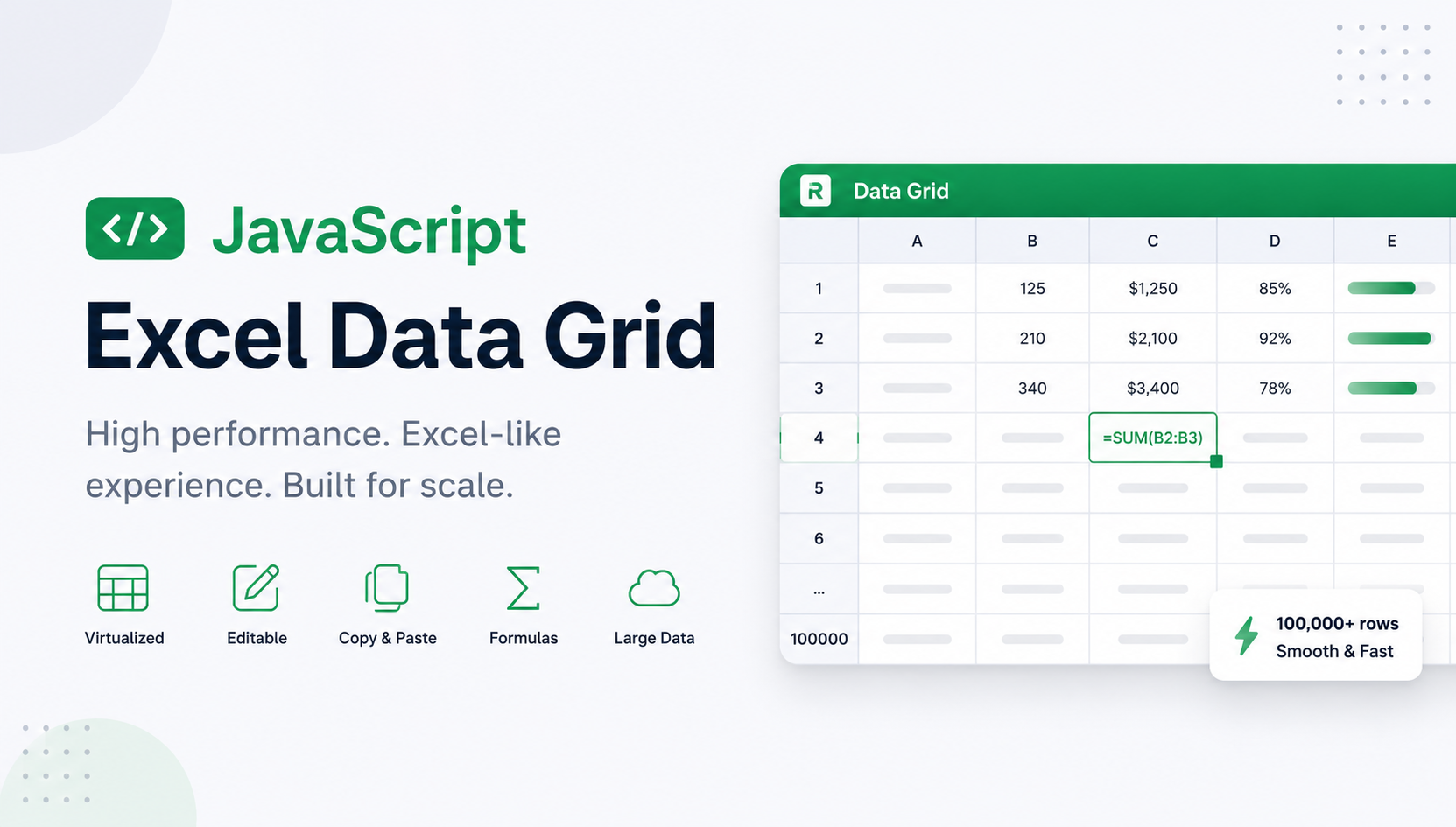
Bring editing, clipboard workflows, and large datasets into your web app.